
Managing reactions
Open the Reactions page
Section titled “Open the Reactions page”-
In the Admin CP, click Configuration, then Reactions in the menu on the left.
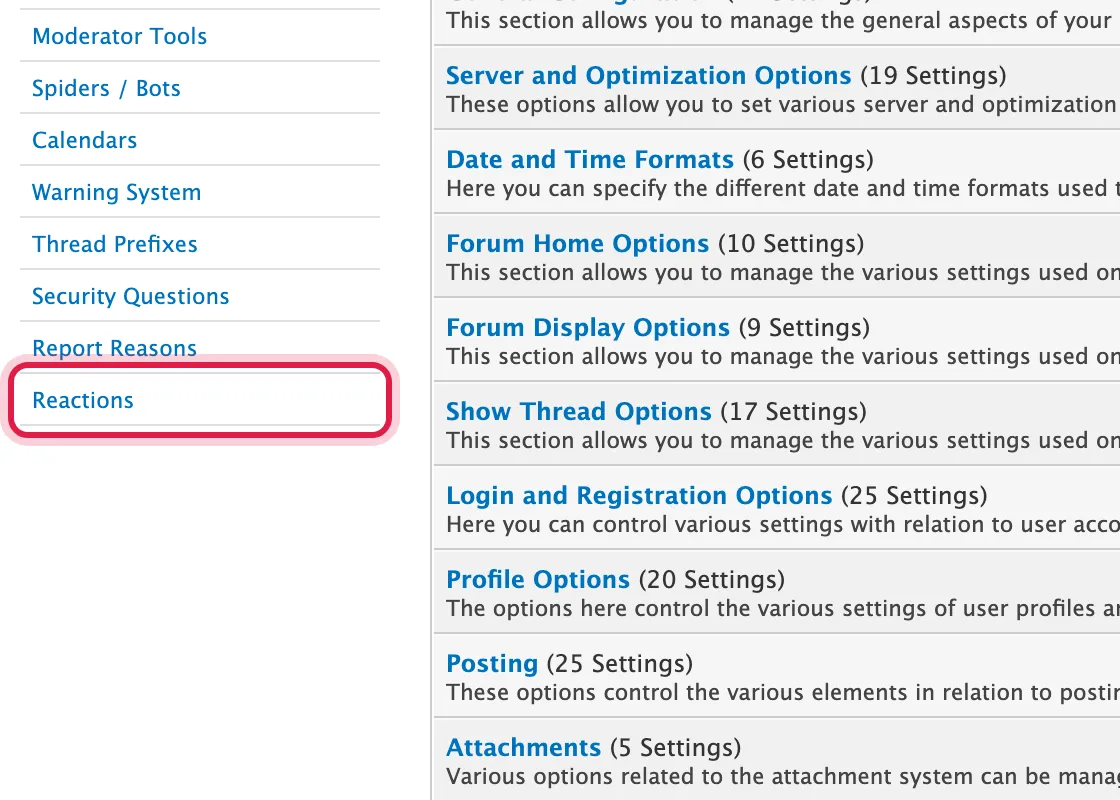
The page lists every reaction in the order members see them, with how many times each has been used.
Add a reaction
Section titled “Add a reaction”-
Click Add Reaction.
-
Type a Name - up to 50 characters - and choose an Image, then click Save Reaction.
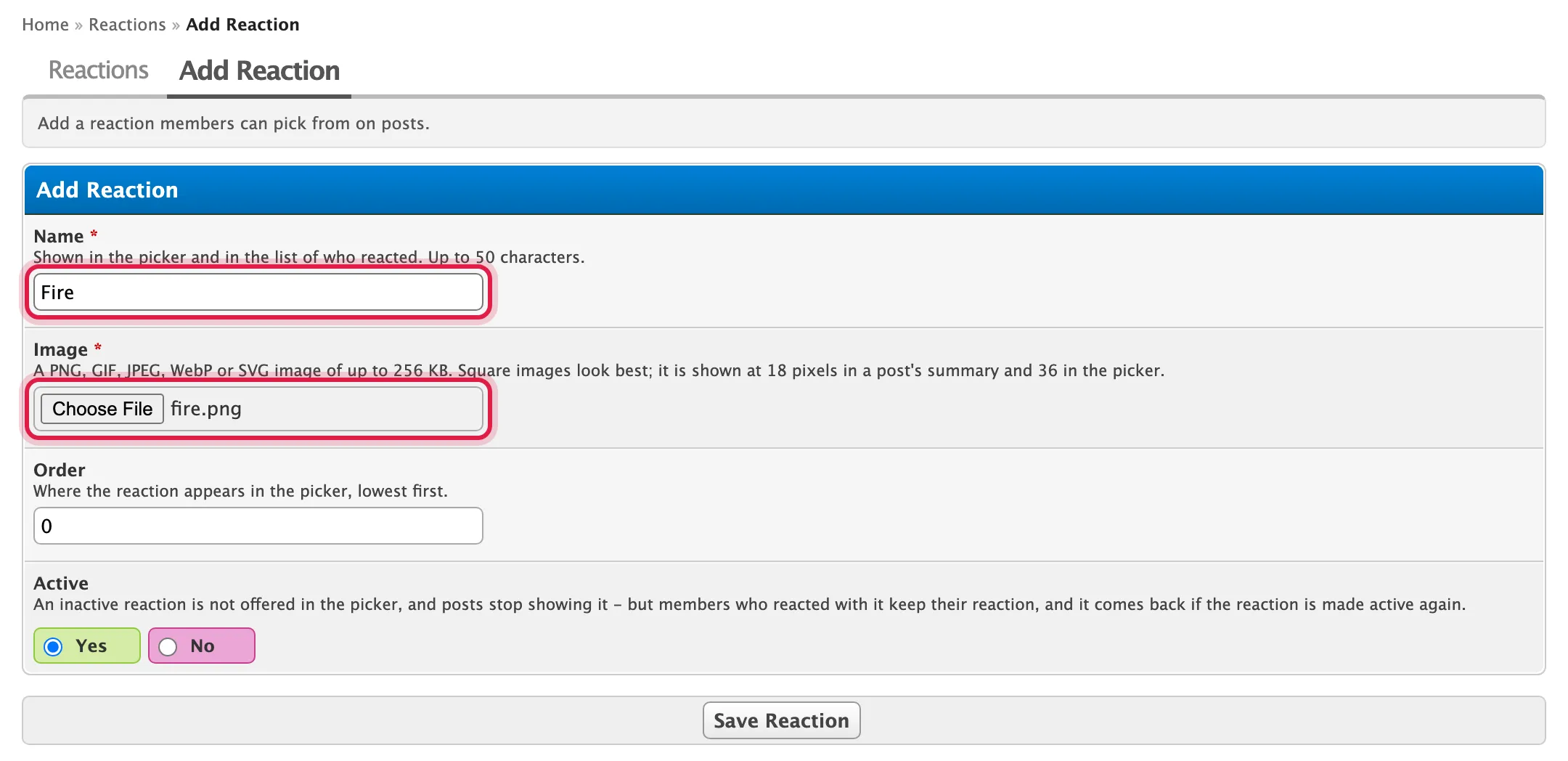
The image has to be a PNG, GIF, JPEG, WebP or SVG of up to 256 KB. Square images look best: they’re shown small (18 pixels) in a post’s summary and bigger (36) in the pop-up.
Edit a reaction
Section titled “Edit a reaction”Click its name. You can change the name, the order, and whether it’s active, and upload a new image - or leave the image empty to keep the one it has. Members who reacted with it keep their reaction.
Change the order
Section titled “Change the order”-
Change the numbers in the Order column - lowest first - and click Save Order.
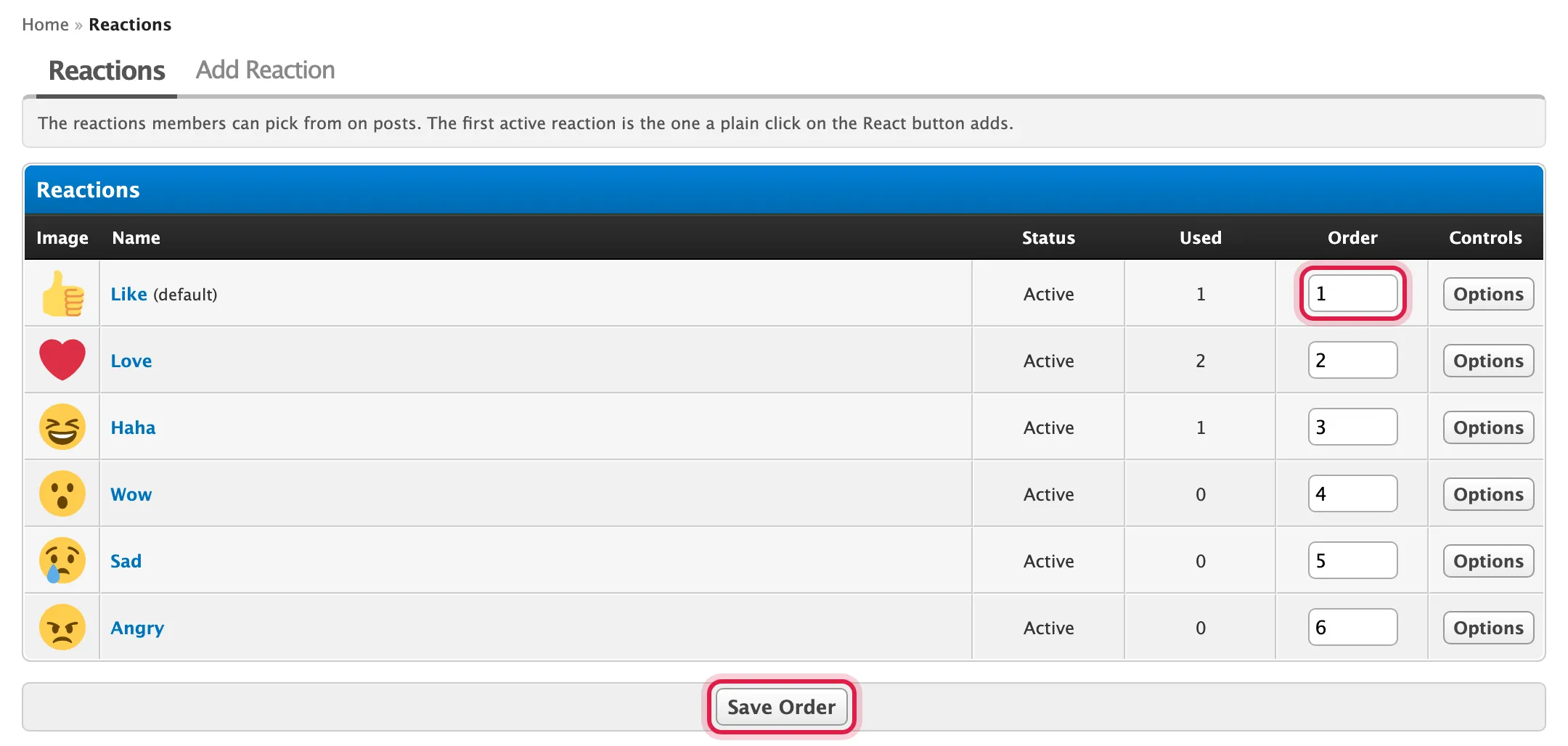
The first active reaction is the forum’s default: the one members get when they just click the button. It’s marked “(default)” in the list.
Hide a reaction
Section titled “Hide a reaction”-
Click Options beside it, then Deactivate.
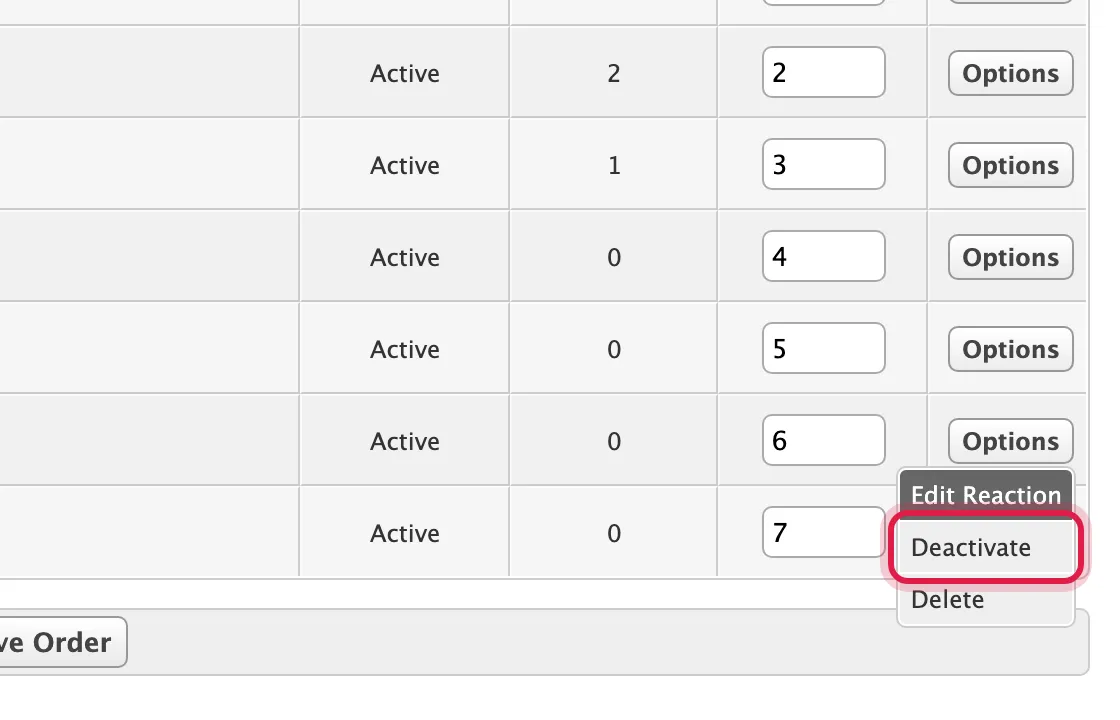
A deactivated reaction disappears from the pop-up and from posts’ summaries. Nobody’s reaction is lost, though: activate it again (Options, then Activate) and they all come back.
Delete a reaction
Section titled “Delete a reaction”Click Options, then Delete. You’re asked first, and told how many times it has been used - every one of those reactions is deleted with it.

Every change is recorded in the administrator log (Tools & Maintenance, then Administrator Log).